eSIM, Device Compatibility
Does the Galaxy S23 Have eSIM? Setup Guide
Learn how to activate, manage, and switch between eSIMs on your Galaxy S23—perfect for travel, dual SIM use, or ditching your physical SIM.
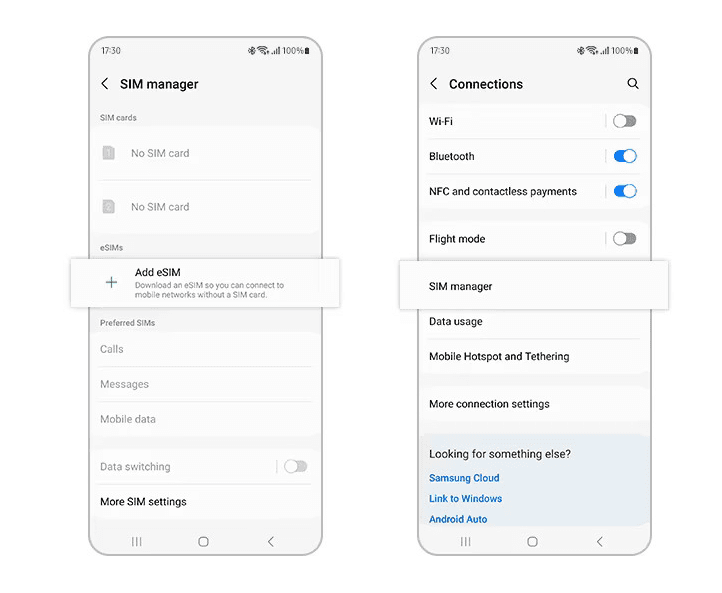
The Samsung Galaxy S23, S23+ and S23 Ultra all support eSIM, though models sold in some markets, such as mainland China, may not. You can store several eSIM profiles but use one at a time, alongside one physical SIM. To add one, go to Settings, Connections, SIM manager, tap Add eSIM (or Add mobile plan) and scan your QR code.

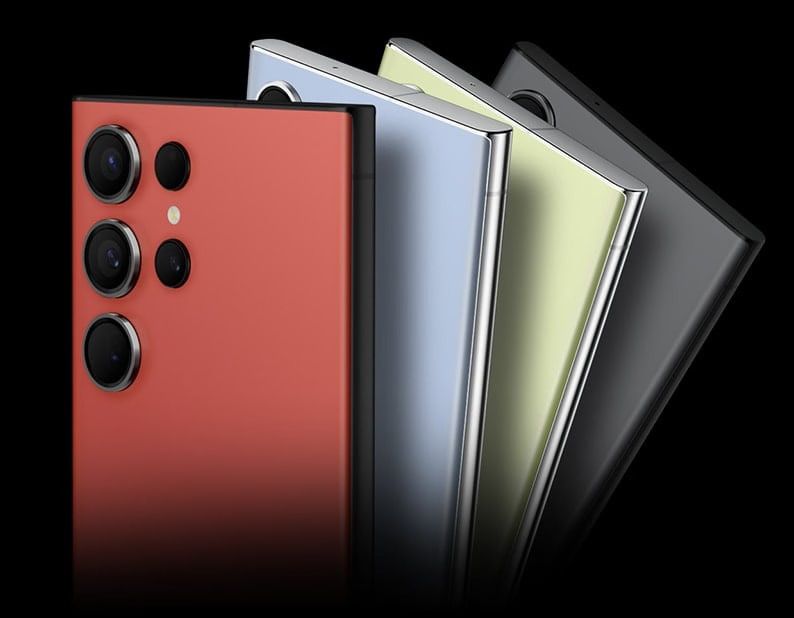
Wondering how to use an eSIM on your Samsung Galaxy S23? It's easier than you think—and perfect for staying connected while traveling.
Instead of swapping out physical SIM cards, you can instantly connect to local or international data networks, right from your phone. Whether you're hopping between countries or just want the flexibility of dual SIM use, your Samsung S23’s capability is a game-changer for savvy travellers, and we're here to show you just how simple it is to get started.
This article is part of our Android eSIM series, do also check out our article on how to install an eSIM on Android.
Does the Galaxy S23 Support eSIM?
To check your own phone, go to Settings, Connections, SIM manager: if you see Add eSIM or Add mobile plan, it supports eSIM.
How many eSIMs can the Galaxy S23 Series Support?
You can install multiple eSIM profiles on the Galaxy S23, but only one eSIM can be active at a time. The S23 series supports dual SIM functionality in two ways:
- Two physical SIM cards, or
- One physical SIM and one active eSIM
This dual-SIM capability is perfect for travellers. You can keep your primary physical SIM active for calls and texts from home and add a travel eSIM for affordable data abroad.. No more SIM swapping at the airport!
How to install an eSIM in my Galaxy S23 Series Phone?
Installing an eSIM on your Galaxy S23 is easy, and there are three supported methods: using a QR code, activating a pre-assigned plan, or entering details manually.
No matter the method used, do note that your device will need to be connected to the internet (either by Wi-Fi or mobile data network) for the installation to take place.

Option 1: Install a Pre-Assigned eSIM plan
If your device has a pre-assigned plan, it is fairly straightforward to have it installed.
- Go to Settings > Connections > SIM Card Manager
- Select ‘Add Mobile Plan’ and wait for it to search for available plans
- If a pre-assigned plan is available, it will appear. Select the plan and follow the instructions on screen
Option 2: QR Code Installation
Most eSIM providers will provide an installation QR code upon successful purchase.
- Display your QR code on another screen or print it
- Go to Settings > Connections > SIM Card Manager
- Select ‘Add Mobile Plan’
- Select ‘Scan Carrier QR code’
- Scan your QR code and follow the setup instructions
Option 3: Manual Input
It is typically not recommended to install an eSIM by manual input. This method is less common and only recommended if the QR method doesn’t work.
- Display your QR code on another screen or print it
- Go to Settings > Connections > SIM Card Manager
- Select ‘Add Mobile Plan’
- Select ‘Scan carrier QR code’ then select ‘Enter Activation Code’
- Enter the information provided to you by your service provider.
Managing eSIM on Your Galaxy S23
Switching between your SIM and eSIM on the Samsung Galaxy S23 is simple once both are activated in your device.Follow these steps to manage your SIMs:
- Go to Settings > Connections > SIM Card Manager
- Enable both your physical SIM card and the eSIM profile you wish to use.
Once activated, you can assign each SIM to handle specific services on your phone—namely:
- Calls
- Messages (SMS)
- Mobile Data
For example, to assign eSIM1 as your data SIM:
- Tap Mobile data
- Choose eSIM1
You can repeat the process for calls and text messages, selecting your preferred SIM or eSIM profile for each function.
SIM Preferences
Your Samsung Galaxy S23 allows you to customise which SIM handles specific tasks:
- Go to SIM card manager
- Under Preferred SIMs, set your defaults for Mobile Data, Calls and Messages
You can also choose “Ask always” if you prefer selecting a SIM manually each time you place a call or send a text.
How to Remove or Switch eSIM Profiles
The Galaxy S23 supports multiple eSIM profiles, though only one can be active at a time alongside a physical SIM.
To switch profiles: Go to SIM card manager, toggle off the current eSIM and enable a different one.
To add or remove eSIMs:
- Go to Settings > Connections > SIM card manager > Add eSIM
- Follow your carrier’s instructions (usually via QR code or activation code.
To switch or deactivate a profile, simply toggle the eSIM off in the SIM card manager.
Troubleshooting eSIM Setup Issues
Setting up the eSIM on your Galaxy S23 is typically straightforward, but you might occasionally run into issues. Here’s how to resolve the most common problems:
Network Error
If your eSIM shows “No Service”:
- Ensure the eSIM is selected for mobile data under Settings > Connections > SIM card manager.
- Confirm that Data Roaming is enabled for your travel eSIM.
- Confirm the eSIM has been activated - some activate automatically, others require manual steps via carrier app or website.
If you’re using a Nomad eSIM, you can check the activation status directly in the Nomad eSIM app or via the Nomad eSIM website under Manage eSIM.
Activation Failures
If your eSIM has been installed and activated, but you still can’t connect to a network, try these steps:
- Restart your device
- Turn Data Roaming off, then on again.
- Switch Airplane Mode on and off.
- Toggle the eSIM off and back on in SIM card settings.
Do not delete your eSIM profile. Unlike physical SIMs, eSIMs can't be reinstalled using the same QR code. If you delete it, you'll need to request a new code from your carrier or provider.
Invalid QR Code
If your device can’t scan the QR code or throws an error:
- Clean your camera lens and scan in a well-lit environment.
- Check if the QR code has expired or was already used—most are single-use only.
- If supported, try manual activation using the SM-DP+ address and activation code.
- Still not working? Request a new QR code from your carrier or eSIM provider.
If you're a Nomad eSIM user facing issues with connectivity after trying the various troubleshooting methods, please contact our customer support with screenshots and your eSIM details so we can help promptly.
Can I Transfer My eSIM From Another Device?
It depends on your carrier. Some allow eSIM transfers between Samsung devices, while others may require issuing a new QR code.
Some Nomad eSIM plans can be moved to another phone and some cannot; see reinstalling and transferring a Nomad eSIM, or contact Nomad eSIM support.
Once you confirm that you can simply transfer eSIM across devices, here is how you can transfer your existing eSIM from your older Galaxy devices to your new Galaxy S23 phone.
- Display your QR code on another screen or print it
- Go to Settings > Connections > SIM Card Manager
- Select Transfer SIM from another device
- On your old phone, select Transfer and follow the steps.
Once transferred, your eSIM will no longer work on the old device.; and if you are switching from iOS to Samsung, you will need your service provider to help with the transfer.
Frequently Asked Questions (FAQs)
Does the Samsung Galaxy S23 have eSIM?
Yes. The Galaxy S23, S23+ and S23 Ultra support eSIM as well as a physical SIM card, though models sold in some markets, such as mainland China, may not. You can check your model in Settings, Connections, SIM manager: if you see "Add eSIM" or "Add mobile plan", your phone supports it. Our device list also shows which models work with Nomad eSIM.
Can the Samsung Galaxy S23 use an eSIM and a physical SIM at the same time?
Yes. The Galaxy S23 supports dual SIM with one physical SIM and one active eSIM. In Settings, Connections, SIM manager, choose which line handles calls, messages and mobile data. A common travel setup is the home SIM for calls and texts and a Nomad eSIM for data.
Can I use two eSIMs at the same time on the Galaxy S23?
No. The Galaxy S23 can store several eSIM profiles, but only one eSIM can be active at a time. For two active lines, use one physical SIM and one eSIM, or two physical SIMs. Travellers usually keep their home SIM for calls and texts and switch a travel eSIM on for mobile data.
Will I lose my eSIM if I factory reset my Galaxy S23?
Not unless you choose to remove it. During a factory reset, Samsung lets you pick “Keep eSIMs and reset” or “Remove eSIMs and reset”. If you remove it, activation QR codes are single-use, and some Nomad eSIM plans can be reinstalled on the same phone or moved to another phone while some cannot, so contact Nomad eSIM support before you reset.
Can I transfer an eSIM from another phone to the Galaxy S23?
It depends on your carrier. Some let you move an eSIM between Samsung phones with Transfer SIM from another device in the SIM manager; others need a new QR code. Some Nomad eSIM plans can be moved to another phone and some cannot; check the help-centre article on reinstalling and transferring a Nomad eSIM, or contact Nomad eSIM support.
What should I do if my eSIM doesn’t activate or connect?
Try restarting your device, toggling airplane mode, or re-enabling the eSIM. Ensure data roaming is turned on. If issues persist, contact your provider’s support team with screenshots and activation details.
Can I use hotspot and data sharing with my Nomad eSIM?
Yes. Nomad eSIM plans support mobile hotspot and data sharing on most compatible phones, including the Galaxy S23. Turn on Mobile Hotspot in Settings, Connections, Mobile Hotspot and Tethering. Shared data counts towards your plan's allowance, and on fixed-data plans you can top up with an add-on if you run low (Unlimited plans have no add-ons).
Find Your Perfect Travel eSIM with Nomad eSIM
With Nomad eSIM travel plans, staying connected around the world has never been easier or more affordable. Choose from flexible data plans in 200+ destinations, starting from just $1.10/GB.
Planning to visit multiple destinations? Regional and global eSIM plans are available to ensure seamless connectivity wherever your travels take you.
Each plan clearly lists the supported networks in the app and on the Nomad eSIM web store, so you can check coverage before purchase. Managing your data is simple—track usage directly from your phone’s settings or via the Nomad eSIM app (where available). Need to stay online across devices? Hotspot and data sharing are supported too.
Ready to travel smarter? Shop Nomad eSIM plans now and stay connected wherever you go.